Showing posts with label Eclipse. Show all posts

Friday, 2 January 2015

Update eclipse Android Development Toolkit to version 23.0.0

I hit the following irritating issue when I started eclipse up recently.

"This Android SDK requires Android Developer Toolkit version 23.0.0 or above. 

Current Version is 22.6.3.v201404151837-1123206. 

Please update ADT to the latest version." 


The really irritating thing was that clicking on Check for Updates found no updates! After a lot of different attempts, here's the steps I used to resolve this.

1. In Eclipse go to Help -> About Eclipse SDK


2. Click on "Installation Details".


3. Select Android Development Tools and click the uninstall button. You will need to restart once this is finished.


4. Now select Help-> Install new software.


5. Expand Developer Tools and select Android Development Tools and select next


6. Click next a few times and then finish.The installation will then begin. Accept any warnings about unsigned content. 

7. You'll be asked for another restart. Restart now.

  
Eclipse should now open with no errors. I hope this helps. I tried following others steps from stackoverflow  but had no success but these steps worked a treat. 

NOTE: At step 2 and 3 you can choose to uninstall all of these options and update all. In this article I focused on only the Android development tools.

Sunday, 19 October 2014

Eclipse - Editor hidden - Fix!

I hit a weird error today where in Eclipse I couldn't seem to open any files - the editor seemed to be minimized somehow! Even restarting eclipse didn't fix it. After a bit of playing about - I've got a solution I thought I would share.


  1. Go to Window -> New Window. This will open a second instance of Eclipse. 
  2. Notice you can now open files again. But you aren't done - you need Eclipse to remember this setting.
  3. Close the old window (the one you couldn't open files with) first.
  4. Now close the new window (the one you can open files with). This will persist your new setting (where you want  to be able to open files!). 
  5. Open Eclipse - you should be back in business. 
Hope this helps someone :-)

Monday, 27 August 2012

AVD Manager - Unable to find a 'userdata.img' file for ABI armeabi to copy into the AVD folder

When trying to create a new Android 4.0.3 virtual device I hit this problem for ages. When I clicked Create AVD it was just doing nothing:


On further investigation I noticed that eclipse was saying the following:

"Unable to find a 'userdata.img' file for ABI armeabi to copy into the AVD folder."

In order to fix this problem, in Eclipse choose Window -> Android SDK Manager

Once this loads, you need to ensure that you have installed ARM EABI v7a System Image under Android 4.0.3 (API15). 

Once this is installed, try to create the AVD again and it should just work. It would have been much better if the "Create AVD" button did something instead of just failing silently! Hope this helps you out.

Sunday, 19 August 2012

Set JAVA_HOME in Windows 7

A common hassle whenever you get a new laptop or PC is setting up the java environment variables so that when you install Eclipse or Netbeans you are ready to go. For your, and my own future reference, this is how it is done (on Windows 7 at least).

1. Find out where you have installed the JDK, or install it from here:

e.g. C:\Program Files\Java\jdk1.7.0_04

2. Press the Windows button and type in "Environment Variables" and press enter.


This will open the following window:


3. Under System Variables, click "New..." and enter JAVA_HOME for the variable name, and the path to your jdk for your variable value:


4. Press OK.

5. Select the variable "Path" and choose to Edit this, and add the following at the end of the string:

%JAVA_HOME%\bin; 


6. Press OK, and then OK to the main dialog. You will now have your Java environment variables set up correctly.

That should be it - if I've missed anything out or you have any problems let me know!

Thursday, 5 January 2012

VS2010 - Ctrl + Click: Installing Microsoft Productivity Power Tools

The worst thing about developing in Java is the IDE's - Eclipse and Netbeans just don't compare to Visual Studio. However the one thing they do allow you to do is press control and click to take you to a definition - something severely lacking from VS...until now!

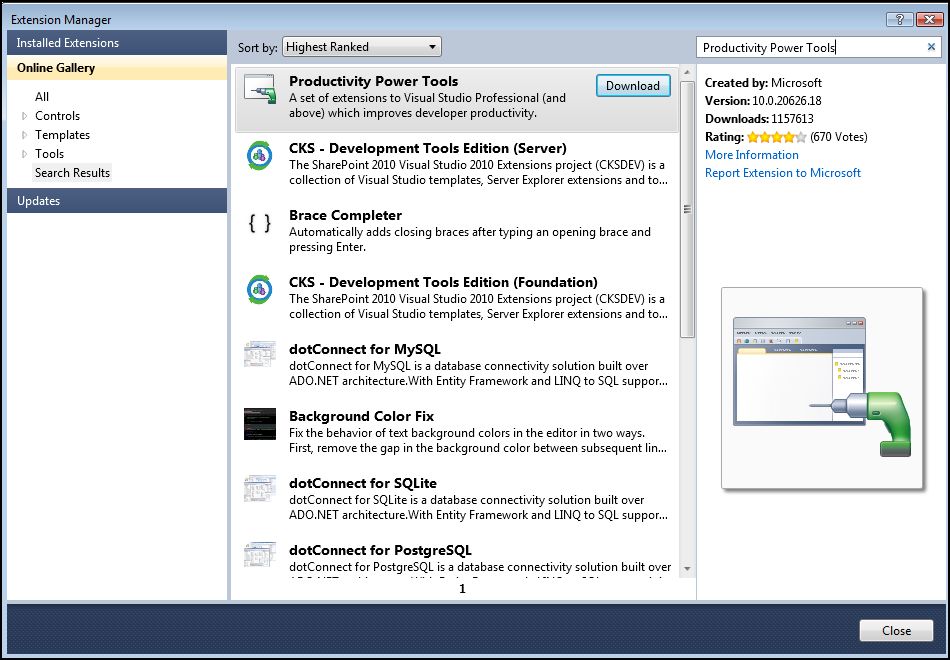
Productivity Power Tools is an extension for Visual Studio 2010 which contains ctrl + click among other helpful tools. To install this tool follow these steps:


  • In VS click the tools option on the toolbar, and select Extension Manager...

  • You will now be shown the extension manager dialog. Select the "Online Gallery" dialog on the left handside, and in the top right hand side search box enter "Productivity Power Tools". 

  • Press download and the download/installation process will start. Press install at the prompt. Once complete you will be notified that you need to restart VS. Press "Restart Now". 

Note that restarting VS may take a while depending on the speed of your machine. Once you restart however you'll notice if you hold down ctrl and hover over any words in your code you will get the hyperlink hand which if you click will take you to it's definition. 


Covid-19 impact on mobile applications - a quick case study

Amidst everything that's been going on over the last few months, checking on how my apps have been doing has been low down my priorities...