Saturday, 14 July 2012

Allow users to download file from your site

I was recently asked to provide a download link to allow users of my website to download a file (a word document).

After an initial Google it seemed that this was going to be a lot more complicated than I thought, but in reality the solution is incredibly simple!

  1. Within your website, create a folder (e.g. named downloads) where you will keep the files that users can download.
  2. Within your webpage (or ASP.NET page) add a simple anchor tag (that's the <a>... </a> you usually use for links.
  3. Set the href property to the location of the file to download.
It's that simple - so you should end up with a tag like:

<a href="../Downloads/documentToDownload.doc">Click here to download file!</a>

Clicking this in your page instead of linking to a page will simply start downloading the file in your browser - easy!

Sunday, 15 January 2012

ASP.NET error when sending email: Validation of viewstate MAC failed. If this application is hosted by a Web Farm or cluster, ensure that configuration specifies the same validationKey and validation algorithm. AutoGenerate cannot be used in a cluster.

I came across this error after deploying a website:


Server Error in '/' Application.

Validation of viewstate MAC failed. If this application is hosted by a Web Farm or cluster, ensure that <machineKey> configuration specifies the same validationKey and validation algorithm. AutoGenerate cannot be used in a cluster.

Description: An unhandled exception occurred during the execution of the current web request. Please review the stack trace for more information about the error and where it originated in the code. 

Exception Details: System.Web.HttpException: Validation of viewstate MAC failed. If this application is hosted by a Web Farm or cluster, ensure that <machineKey> configuration specifies the same validationKey and validation algorithm. AutoGenerate cannot be used in a cluster.

Quite a nasty looking one but with a very simple fix - just need to add the following to your web.config file in the system.web section:

 <pages validateRequest="false" enableEventValidation="false" viewStateEncryptionMode="Never" enableViewStateMac="false"/>


Thursday, 5 January 2012

VS2010 - Ctrl + Click: Installing Microsoft Productivity Power Tools

The worst thing about developing in Java is the IDE's - Eclipse and Netbeans just don't compare to Visual Studio. However the one thing they do allow you to do is press control and click to take you to a definition - something severely lacking from VS...until now!

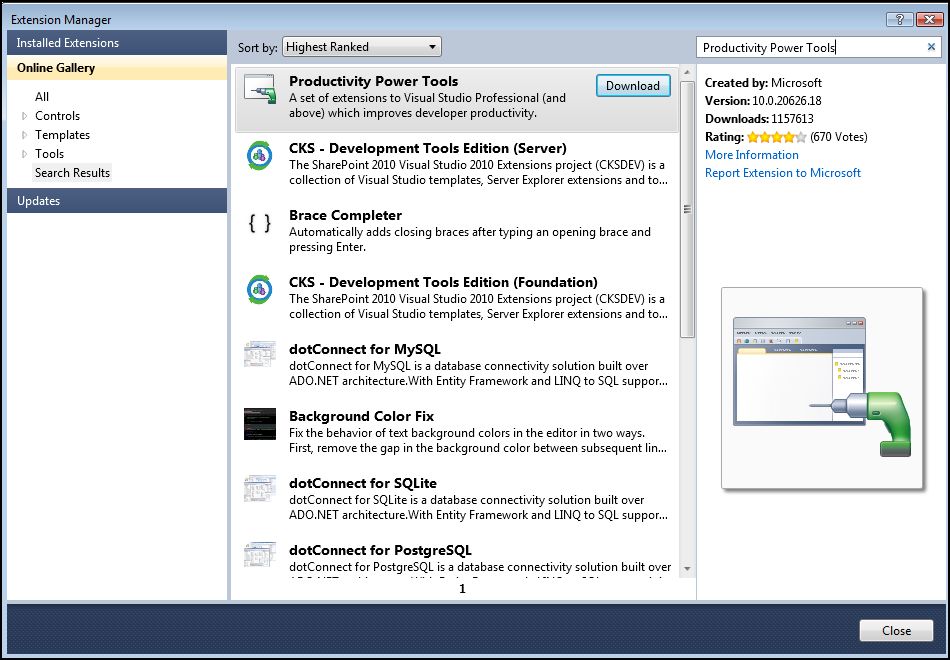
Productivity Power Tools is an extension for Visual Studio 2010 which contains ctrl + click among other helpful tools. To install this tool follow these steps:


  • In VS click the tools option on the toolbar, and select Extension Manager...

  • You will now be shown the extension manager dialog. Select the "Online Gallery" dialog on the left handside, and in the top right hand side search box enter "Productivity Power Tools". 

  • Press download and the download/installation process will start. Press install at the prompt. Once complete you will be notified that you need to restart VS. Press "Restart Now". 

Note that restarting VS may take a while depending on the speed of your machine. Once you restart however you'll notice if you hold down ctrl and hover over any words in your code you will get the hyperlink hand which if you click will take you to it's definition. 


Monday, 12 December 2011

Android - Could not find HelloWorld.apk! - fix

So my first experience of Android development left me frustrated after getting an error trying to launch the  simple Hello World example!

Simple fix - basically when I set up eclipse I forgot to set the JAVA_HOME path variable.

The symptoms are this in the console:
[2011-12-12 22:37:05 - RoryHelloWorld] Android Launch!
[2011-12-12 22:37:05 - RoryHelloWorld] adb is running normally.
[2011-12-12 22:37:05 - RoryHelloWorld] Could not find RoryHelloWorld.apk!

The fix is simple. Open up your machines environment variables (in Vista it's Control Panel -> System -> Advanced System Settings -> Environment Variables).

In System Variables add a new variable JAVA_HOME set to where your JDK is installed, e.g.

JAVA_HOME=C:\Program Files\Java\jdk1.6.0_12\

Then add JAVA_HOME to your Path variable. I added:

%JAVA_HOME%\bin;%PATH%; to the end of mine

Restart eclipse for the changes to take effect, then the next time you run your app it should work!


Tuesday, 6 December 2011

10 Billion Android App Downloads - Missed opportunity?

So Google has announced that there have been 10 Billion apps downloaded on Android devices since its inception a few years ago - which is a staggering amount which clearly highlight it as a major competitor to the iPhone (Google announcement).

One billion is a pretty big number by any measurement. However, when it’s describing thespeed at which something is growing, it’s simply amazing. This past weekend, thanks to Android users around the world, Android Market exceeded 10 billion app downloads—with a growth rate of one billion app downloads per month. We can’t wait to see where this accelerating growth takes us in 2012.

Again this has got me thinking, am I missing out on something here? I have an android phone (HTC Desire) and yet I've still not tried to make myself an app yet.

My mission for this festive period is to have created my own app - the search for ideas starts now! I think I'll start using this tutorial and work it up from there. I'll try document my progress as I go.

P.S. if you are reading this and have anything you want developed you think would be useful then leave a comment!

Monday, 5 December 2011

How To: Publish a ClickOnce application in Visual Studio 2010

Ever wanted an easy way to deploy an application and then publish updates/patches to it with no fuss? If so then look no further than ClickOnce applications. Here's the simple steps you need to do to get your app out there!

Pre-requisite


You need to run Visual Studio 2010 as Administrator. For instructions on how to see this please see Run Visual Studio as Administrator.

Step 1


Right click on your project file, and choose Publish... from the options. You will be presented with the following screen:


You can publish to a file path, or a server or to a website. In this instance I'll just choose the default and press Next >.

Step 2


The next stage in the wizard asks you whether you want allow the user to run the program offline (i.e. they run it locally from their own machines) or whether you want it to run from the publish location.


In my example I'm publishing my MediaPlayer, so I want people to run it from their local machine without a connection to the Internet needed.  Press Next >.

Step 3


The final stage in the wizard is to press finish on the confirmation screen. This just shows a summary of the previous steps.


Press Finish.

Step 4


Once you have clicked Finish your application will be published. In my example I am shown the web page where the application has been published to. Now, anyone who wants to install the app just needs to click Install.


Note that it shows the pre-requisites required, and also handles the Version numbering for you - pretty neat!

Publishing updates

So you have deployed your application and you need to circulate a fix? Worried you will need to uninstall/install the application everywhere again? Fear not, you just follow the steps above again and it will release the new version to everyone the next time they launch the application.


The user  then just presses ok, it downloads the new version and away you go - job done!

Version Numbering


If you want more control over the version numbering, then you can also do this. Simply right click on your project and choose Properties. Now navigate to the Publish tab and you will see the Publish Version numbering down the bottom. Now you also have an easy way to version your software.


Each time you publish you can automatically increment the version number too.

Thursday, 1 December 2011

YaCy - Can anything replace Google?

Reading an article from the BBC (http://www.bbc.co.uk/news/technology-15935550) about the newly launched YaCy search engine got me thinking about whether a search engine will ever replace Google as the dominant search engine. My immediate reaction to YaCy was "no chance" - it relies upon people downloading software and installing it in order for it to advance its indexing powers, something that Google just seems to do. No matter how much effort this is for people to contribute to it, it is more than it "just working".

I look at other search engines such as Yahoo and Bing and think to myself over the last 5 years I have never used them, I always use Google. "Googling" something has become part of normal language, you don't search the Internet you "Google" it. It's just the same as vacuum cleaners are called Hoovers. In a bizarre way Dyson's are seen as the best kind of Hoovers these days!

With the simplicity of Google, the neat features it has gradually added to it like blogs, email, Google Reader etc I just can't see anything replacing Google as the de facto standard for searching the Web.

Covid-19 impact on mobile applications - a quick case study

Amidst everything that's been going on over the last few months, checking on how my apps have been doing has been low down my priorities...